
Why Is My WiFi So Slow in Dubai? Top Causes and Easy Fixes
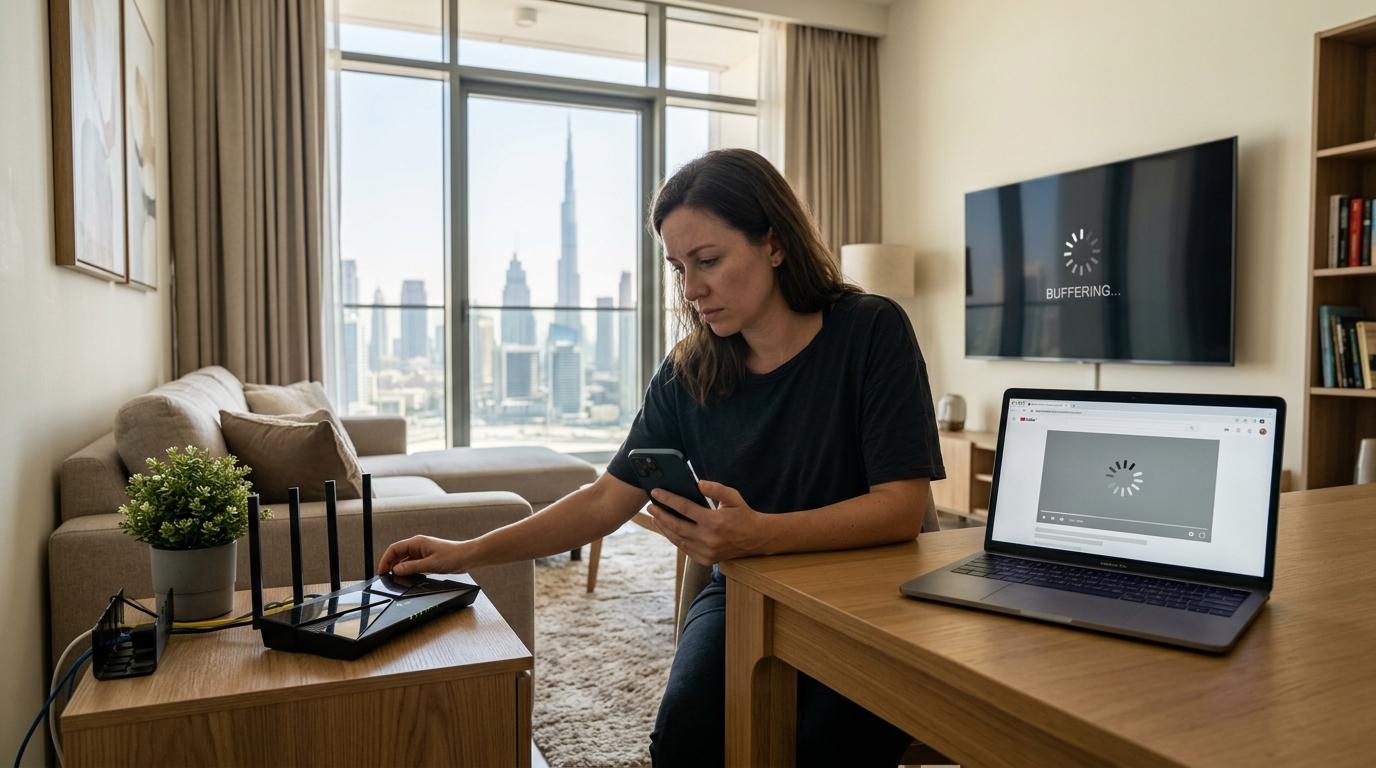
A slow wireless connection can interrupt almost everything you do online, from attending work meetings to streaming movies, using smart devices, gaming, or making video calls. Many Dubai residents experience inconsistent internet performance even when they are paying for a high-speed broadband package. The issue is not always the internet plan itself. Router placement, thick walls, nearby wireless networks, outdated equipment, device limitations, and incorrect settings can all affect performance.
Understanding why slow WiFi in Dubai occurs can help you identify the real source of the problem instead of repeatedly restarting the router. Some issues can be resolved by changing a few settings, while others may require better equipment, improved placement, or professional troubleshooting.
Check Whether the Internet or WiFi Is Slow
Before changing router settings, determine whether the problem is related to your broadband connection or your wireless network.
Connect a laptop directly to the router using an Ethernet cable and run a speed test. Compare the wired result with the speed shown on your internet package. If the wired speed is close to the subscribed speed but wireless performance is poor, the problem is likely inside your home network.
When both wired and wireless speeds are significantly lower than expected, the issue may involve the internet line, modem, router, provider network, or package limitations.
Testing both connection types prevents unnecessary changes. Replacing a router will not solve a provider-side fault, while upgrading an internet package may not help if the real problem is weak wireless coverage.
Run tests at different times of the day. Record the download speed, upload speed, and latency. This information makes it easier to see whether the problem is constant or only happens during busy hours.
Poor Router Placement
Router placement has a major effect on wireless coverage. Many people place the router beside the television, inside a cabinet, near the entrance, or in a corner because that is where the internet cable enters the property.
These locations are convenient but often unsuitable for signal distribution.
WiFi signals travel outward from the router. When the device is placed at one end of the apartment or villa, rooms on the opposite side may receive a weak connection. Cabinets, furniture, walls, doors, and household appliances can reduce the signal before it reaches your devices.
Place the router in a central, open, and elevated position whenever possible. A shelf or wall-mounted location usually provides better coverage than the floor.
Avoid placing it:
- Inside closed cupboards
- Behind a television
- Under a desk
- Beside a microwave
- Near large metal objects
- Close to thick concrete walls
- Inside an electrical cabinet
- Next to cordless phone bases
Even moving the router by a few metres can improve performance in important areas such as bedrooms, living rooms, and home offices.
Thick Walls and Large Property Layouts
Dubai properties vary greatly in size and construction. Apartments may contain reinforced concrete walls, while villas may have multiple floors, long corridors, and outdoor areas.
A single router may not provide reliable coverage across a large property. The signal becomes weaker each time it passes through a wall, ceiling, floor, mirror, metal surface, or closed door.
The 5 GHz band offers faster speeds but has a shorter range. The 2.4 GHz band travels farther but is more affected by interference and usually provides lower speeds.
In a small apartment, central router placement may be enough. In a large apartment, townhouse, or villa, a mesh WiFi system may provide better coverage.
Mesh systems use multiple connected units to distribute the wireless signal throughout the property. When installed correctly, devices can move between rooms while maintaining a stable connection.
However, mesh nodes must also be positioned carefully. A node placed too far from the main router may repeat an already weak signal. Each node should receive a strong connection from the router or another node.
Wireless Interference from Nearby Networks
Apartment buildings often contain many active WiFi networks. Routers operating on the same or overlapping channels compete for wireless airtime.
This congestion can reduce speed and increase latency, especially during evenings when more residents are online.
The 2.4 GHz frequency is particularly crowded because it has fewer non-overlapping channels. Bluetooth devices, baby monitors, wireless cameras, older cordless phones, and some household appliances may also use similar frequencies.
Modern routers usually choose channels automatically, but automatic selection is not always accurate. The router may remain on a congested channel even when a better option is available.
Use a WiFi analyser application to check nearby networks and channel usage. For 2.4 GHz, channels 1, 6, and 11 are generally the safest choices because they do not overlap.
On 5 GHz, there are more channel options and usually less interference. Devices that are close to the router should normally use 5 GHz for better speed.
Some routers combine both bands under one network name. This feature is convenient, but older or less capable devices may connect to the wrong band. Separating the 2.4 GHz and 5 GHz network names can provide more control during testing.
Too Many Connected Devices
Modern homes may have dozens of connected devices. Phones, laptops, televisions, cameras, tablets, speakers, smart plugs, watches, gaming consoles, printers, and appliances all use network resources.
A router must manage communication with every connected device. Older or entry-level routers may struggle when many devices are active at the same time.
Background activity also matters. Cloud backups, software updates, security camera uploads, game downloads, and streaming services can consume bandwidth without being obvious.
Log in to the router admin panel and review the connected device list. Remove unfamiliar devices and disconnect equipment that is no longer used.
Change the WiFi password if you suspect unauthorised access. Use a strong password with a combination of letters, numbers, and symbols.
Quality of Service settings can also help. QoS allows you to prioritise important activities such as video calls, work applications, gaming, or streaming. Incorrect QoS settings can reduce performance, so configure them carefully.
Outdated Router Hardware
Internet speeds have increased significantly, but many homes still use routers designed for older broadband packages.
An outdated router may have:
- Slow Ethernet ports
- Older WiFi standards
- Weak internal antennas
- Limited processing power
- Poor multi-device management
- Inadequate security support
- Limited channel options
A router that performed well with a 100 Mbps connection may become a bottleneck after upgrading to a much faster package.
Check the router specifications. Gigabit internet requires Gigabit Ethernet ports. Devices that support WiFi 5, WiFi 6, or WiFi 6E can provide better performance than older standards when paired with compatible equipment.
Do not choose a router based only on its advertised maximum speed. Real-world performance depends on device capability, distance, interference, channel width, and the number of connected devices.
For large homes, a suitable mesh system may be more useful than one extremely powerful router.
Router Firmware Needs Updating
Router manufacturers release firmware updates to improve security, fix software problems, enhance compatibility, and sometimes improve performance.
Many routers update automatically, but some require manual updates. Log in to the router admin page and check the firmware section.
Before updating:
- Confirm the exact router model
- Use the official firmware source
- Keep the router powered during installation
- Back up important settings
- Avoid interrupting the update process
After the update, restart the router and test the connection again.
If the router has not received updates for several years, it may no longer be supported. Replacement may be safer and more effective than continuing to use outdated hardware.
Incorrect Router Settings
Router settings can affect speed, coverage, and stability. Problems sometimes begin after a manual configuration change, provider update, factory reset, or installation of a new device.
Settings worth checking include:
- Wireless mode
- Channel selection
- Channel width
- Security mode
- Band steering
- QoS rules
- Guest network limits
- Parental controls
- Device priority
- DNS settings
- Access control lists
For 2.4 GHz networks in crowded buildings, a 20 MHz channel width may provide better stability than 40 MHz. Wider channels can offer higher speeds in ideal conditions but may create more interference.
On 5 GHz, 80 MHz may provide good performance for compatible devices. Extremely wide channel settings are not always stable in every environment.
Use WPA2 or WPA3 security. Avoid obsolete security modes because they can reduce compatibility and weaken network protection.
Device-Specific Problems
Sometimes the WiFi works well on one device but poorly on another. In that case, the router may not be the main problem.
A phone, laptop, or tablet may experience slow performance because of:
- An outdated operating system
- Old wireless drivers
- Limited WiFi hardware
- Power-saving settings
- Background applications
- VPN use
- Malware
- Low storage
- Browser extensions
- Damaged network settings
Restart the affected device and forget the WiFi network. Reconnect using the correct password.
For Windows laptops, update the wireless adapter driver through the device manufacturer or Windows Update. On mobile devices, install current operating system updates.
Disable VPN applications temporarily and run another speed test. Some VPN servers reduce speed significantly, especially when they are located far away.
Compare multiple devices in the same room. If only one device is slow, focus on that device rather than changing the entire network.
Distance from the Router
Wireless performance decreases as distance increases. A device in the same room as the router may receive excellent speed, while a device behind several walls may receive only a small portion of that speed.
Test the connection in different rooms. Start close to the router and move farther away.
If speed falls sharply in specific areas, the property has a coverage problem.
Possible solutions include:
- Moving the router
- Adding a mesh system
- Installing a wired access point
- Using Ethernet for fixed devices
- Repositioning mesh nodes
- Reducing obstacles
- Using a suitable frequency band
WiFi extenders can help in some situations, but poor placement may reduce speed. Traditional repeaters often receive and retransmit data on the same radio, which may lower available bandwidth.
A wired access point usually provides stronger performance because it connects directly to the router using Ethernet.
Peak-Hour Network Congestion
Internet performance may change during the day. If the connection is fast in the morning but slower in the evening, local or provider network congestion may be involved.
Evening hours are often busier because more people are streaming, gaming, downloading, and attending online meetings.
Run several wired tests during both quiet and busy periods. When wired performance also drops, contact the internet provider and share the results.
Internal congestion can create similar symptoms. Multiple family members may start high-bandwidth activities at the same time.
Check whether televisions, consoles, cloud backup services, cameras, and computers are consuming bandwidth during slow periods.
Scheduling large downloads and backups outside busy hours may improve the experience for everyone.
Old or Damaged Ethernet Cables
Ethernet cables connect the modem, router, switches, access points, and other network equipment. A damaged or outdated cable can limit connection speed.
For example, a cable or port operating at 100 Mbps will prevent faster performance even if the broadband package supports much higher speeds.
Check the connection status in the router admin panel. Confirm whether WAN and LAN ports are negotiating at 1 Gbps or higher where supported.
Replace damaged, tightly bent, or poorly terminated cables. Cat5e and Cat6 cables are suitable for many home Gigabit installations when used correctly.
Avoid running data cables tightly alongside power cables for long distances because electrical interference may affect performance.
Background Downloads and Cloud Backups
Cloud applications often upload and download data automatically. Photo backups, operating system updates, game updates, file synchronisation, and security camera recordings may use significant bandwidth.
Upload congestion is especially disruptive. When the available upload capacity is fully used, video calls may freeze, websites may load slowly, and latency may increase.
Check task managers, phone settings, cloud applications, and router traffic statistics.
Pause large backups and run another speed test. If performance improves, configure those services to run at suitable times or limit their bandwidth.
Some routers include traffic monitoring features that show which devices are using the most data.
DNS and Website Loading Delays
A slow DNS service can make websites appear slow even when the connection speed is acceptable. DNS translates website names into internet addresses.
If pages take a long time to begin loading but downloads are fast once they start, DNS may be contributing to the delay.
Try a reliable DNS service in the router or device settings. Record the original configuration before making changes.
DNS changes will not fix weak WiFi signals, poor coverage, or line problems, but they can improve response times in certain cases.
Restarting Versus Factory Resetting
Restarting the router is a useful first step because it clears temporary software problems and re-establishes the internet connection.
Turn the router off, wait around 30 seconds, and power it on again. Allow several minutes for the connection to recover.
A factory reset is different. It deletes custom settings, WiFi names, passwords, provider details, port forwarding rules, and other configurations.
Do not factory-reset the router unless you know how to reconfigure it or have the required provider information.
A restart may solve a temporary problem, but repeated restarts are not a permanent solution. If performance returns briefly and then becomes slow again, investigate heat, firmware, traffic load, hardware age, and configuration.
Router Overheating
Routers generate heat during operation. Poor ventilation can cause instability, slower performance, or unexpected restarts.
Do not cover the router or place it inside a tightly closed cabinet. Keep air vents clear and avoid stacking other devices on top.
Dubai’s climate can increase indoor equipment temperatures, especially in rooms with limited cooling. Place networking equipment in a ventilated indoor area away from direct sunlight.
If the router feels excessively hot, power it off temporarily and inspect its location. Ongoing overheating may indicate failing hardware.
Use Ethernet for High-Demand Devices
Wireless connections are convenient, but Ethernet usually provides better stability, lower latency, and more consistent speed.
Devices that remain in one location can benefit from wired connections. These include:
- Desktop computers
- Smart televisions
- Gaming consoles
- Workstations
- Network storage
- Streaming boxes
- Security recording systems
Connecting fixed devices through Ethernet also reduces wireless congestion for phones, tablets, and laptops.
For villas and larger properties, structured network cabling can support properly positioned access points on different floors.
Secure the Wireless Network
Unknown users can consume bandwidth and create security risks. Review the router’s connected device list and remove anything you do not recognise.
Change both the WiFi password and router administration password. Do not use the default router login credentials.
Disable WPS if it is not needed. Create a separate guest network for visitors instead of sharing the main network password.
Use current security standards and keep firmware updated.
A secure network improves privacy and prevents unauthorised devices from affecting performance.
When Professional Troubleshooting Is Helpful
Professional support may be useful when basic changes do not resolve the problem, especially in large villas, offices, multi-floor properties, or homes with complex smart-device installations.
A technician can test:
- Broadband performance
- Router condition
- Cable quality
- Wireless signal strength
- Channel congestion
- Coverage gaps
- Mesh placement
- Access point configuration
- Device connections
- Network security
Testing the property with proper tools helps identify whether the problem involves the provider, router, cabling, interference, coverage, or connected devices.
Final Thoughts
Slow WiFi does not always mean you need a faster internet package. Start by comparing wired and wireless speeds, then check router placement, device load, interference, hardware age, and coverage.
Simple actions such as moving the router, updating firmware, changing channels, removing unknown devices, and connecting fixed equipment through Ethernet can make a noticeable difference.
For larger properties, a well-designed mesh network or wired access point system may provide more consistent coverage than a single router. The best solution depends on the property layout, wall construction, internet speed, and number of connected devices.

 English
 Arabic
 French
 Spanish
 Portuguese
 Deutsch
 Turkish
 Dutch
Dutch
 Russian
 Romaian
 Portuguese (Brazil)
 Greek
Greek